Key Takeaways
- Under Rule 139 of CMVR, virtual documents on NextGen mParivahan carry equal legal validity to physical documents.
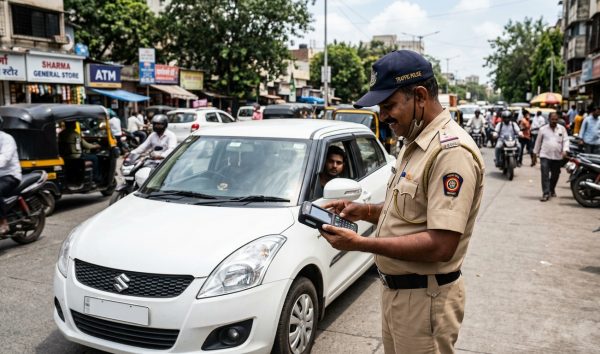
- Traffic enforcement officers accept dynamic QR codes but strictly reject phone gallery photos or static screenshots.
- Adding an RC requires your registration number along with the last 5 digits of the chassis and engine numbers.
- Failing to produce an authorised physical or digital document attracts heavy penalties, including ₹5,000 for missing driving licences.
- You can view cached digital documents offline within the app during network blackouts at police checkpoints.
| Feature | Details |
|---|
| Applicable Legal Provision | Rule 139 CMVR (G.S.R. 1081(E) & G.S.R. 584(E)) |
| Required Documents for Virtual RC | Vehicle Registration No., Chassis No. (last 5), Engine No. (last 5) |
| Required Documents for Virtual DL | Driving Licence Number, Date of Birth |
| Authorised Digital Platforms | NextGen mParivahan (MoRTH/NIC) & DigiLocker (MeitY) |
| Document Seizure Protocol | Digital impounding via central eChallan database |
Carrying physical vehicle paperwork everywhere often leads to misplacement, water damage, or tear. Completing your mparivahan virtual rc download through the official NextGen mParivahan application ensures that you always carry a legally valid, tamper-proof Registration Certificate directly on your smartphone. You can also verify your current registration details instantly by using the Check RC and vehicle owner details service before configuring your mobile app profile.
Enacted under the Information Technology Act, 2000, and Central Motor Vehicles Rules, these electronic certificates eliminate the need to carry physical smart cards. As of September 2026, traffic police personnel across all Indian states are mandated to accept virtual records presented via designated government applications.
Legal Validity: Is mParivahan Virtual RC Valid During Checks?
Many vehicle owners frequently ask: is mparivahan virtual rc valid when stopped by local traffic authorities? Yes, electronic documents shown via NextGen mParivahan and DigiLocker enjoy full legal equivalence with physical certificates across the territory of India.
This framework is anchored by the Ministry of Road Transport and Highways (MoRTH) through specific central notifications:
- Rule 139 of CMVR, 1989: Amended vide Notification No. G.S.R. 1081(E) dated 2 November 2018, allowing motorists to produce transport documents electronically.
- CMVR Amendment G.S.R. 584(E): Notified on 25 September 2020 and enforced on 1 October 2020, establishing the legal requirements for digital maintenance and roadside verification.
- MoRTH Standard Operating Procedure (SOP): Circular No. RT-11036/64/2017-MVL dated 17 December 2018 outlines the protocol for electronic document inspection and digital impounding.
- Section 4 of the IT Act, 2000: Directs that where any law requires documents to be submitted in physical print, electronic records satisfy that requirement.
Rule 139 grants motorists a 15-day grace period to produce physical or digital proofs if they cannot present documents on the spot, preventing full immediate compounding fines.
Why Traffic Police Reject Phone Gallery Screenshots

A common mistake made by Indian motorists is showing a saved phone photo or gallery screenshot of their Registration Certificate or Driving Licence during inspections. Enforcement officials will reject these static pictures immediately and issue a challan.
| Parameter | Phone Gallery Screenshot | mParivahan Virtual Document |
|---|
| Data Freshness | Static; offline capture | Dynamic; linked to central VAHAN/SARATHI |
| Cryptographic Proof | None; prone to editing | Encrypted, digitally signed QR code |
| Insurance & PUC Status | Shows outdated details | Fetches live validity updates |
| Impound Capability | Cannot be seized digitally | Allows digital marking in eChallan portal |
Phone images lack cryptographic authenticity. With photo-editing apps, details such as registration dates, owner names, or licence validity can be manipulated. In contrast, the virtual RC on the app contains an encrypted QR code scanned directly by traffic officers using the official enforcement app.
Screenshots cannot prove active motor insurance, valid PUC, or tax clearance. Furthermore, under MoRTH protocols, if an offence requires impounding a document, the officer must record the seizure electronically in the national repository. A static photo cannot be digitally tagged.
Penalties for Failing to Produce Valid Documents
Showing an unauthorised screenshot or failing to show valid documents results in severe fines under the amended Motor Vehicles Act, 1988.
| Offence | MV Act Section | Penalty Amount |
|---|
| Driving without a valid Driving Licence | Section 3 r/w Section 181 | ₹5,000 and/or up to 3 months imprisonment |
| Driving without valid Registration (RC) | Section 39 r/w Section 192 | ₹2,000 to ₹5,000 (1st offence); up to ₹10,000 for repeats |
| Driving without valid Motor Insurance | Section 146 r/w Section 196 | ₹2,000 (1st offence); ₹4,000 for repeats |
| Driving without a valid PUC Certificate | Section 190(2) | Up to ₹10,000 and/or licence disqualification for 3 months |
| General Non-Production of Documents | Section 130 r/w Section 177 | ₹500 (1st offence); ₹1,500 for repeats |
To avoid non-production fines, drivers must keep their records updated. If you are ever cited for an infraction, check your status immediately on the Check challan status by vehicle number portal to resolve your penalties quickly.
How to Add RC in mParivahan: Step-by-Step Guide
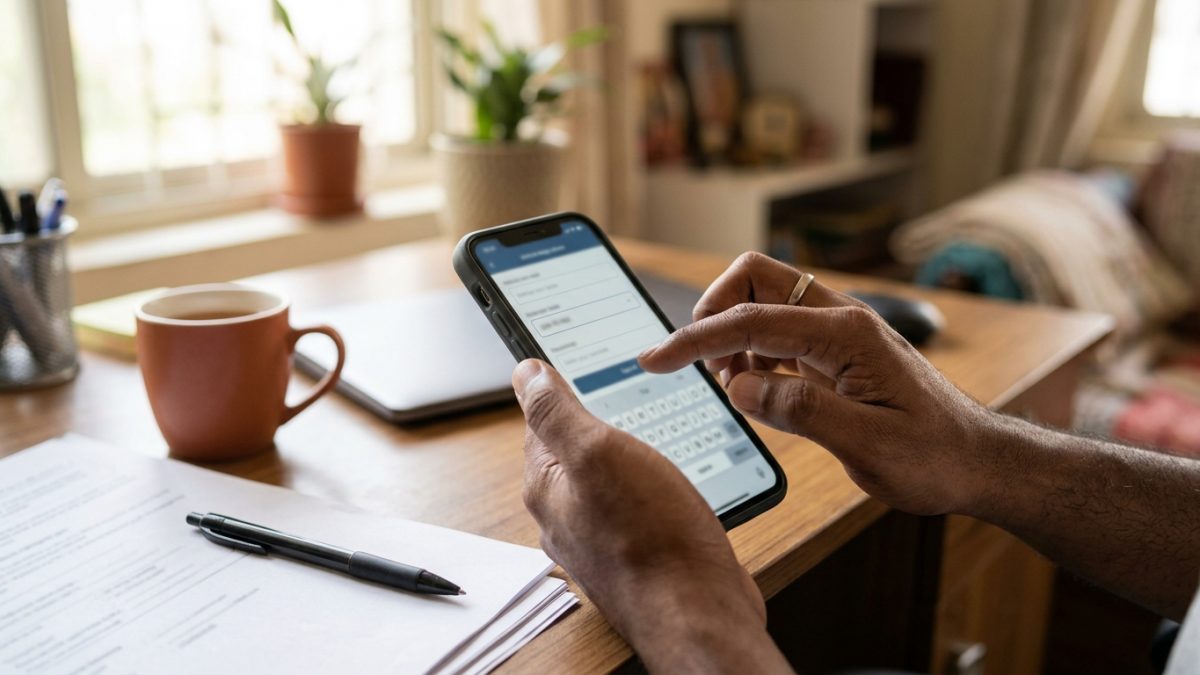
Understanding how to add rc in mparivahan allows you to store your vehicle papers securely. Before proceeding, make sure your mobile number is active on the central vehicle database.
- Install the application: Download the official NextGen mParivahan application from the Google Play Store or Apple App Store.
- Create an account: Launch the app, select your preferred language, tap Sign Up, select your state, and enter your full name, mobile number, and a 6-digit mPIN.
- Verify via OTP: Input the one-time password received on your phone to complete user onboarding.
- Search vehicle record: From the dashboard header, click on the RC tab and type your complete Vehicle Registration Number.
- Add to your profile: View the basic record, tap Add to Dashboard for Virtual RC, and type the last 5 digits of your chassis number and engine number.
- Authenticate the link: Enter the OTP sent to the mobile number registered with the RTO in the central VAHAN Citizen Services portal.
- Access your virtual document: Your complete virtual RC is now available under My Virtual RC, displaying live insurance, fitness, and PUC expiration timelines.
Make sure to enter only the alphanumeric characters for chassis and engine digits without adding asterisks or slashes unless specified on your physical smart card.
How to Add and Download Virtual DL in mParivahan
In addition to your vehicle registration, setting up a virtual dl in mparivahan is straightforward. It allows motorists to leave heavy wallets at home while remaining fully compliant with CMVR regulations.
- Navigate to DL section: Open the app dashboard and select the DL search tab from the top navigation menu.
- Enter licence credentials: Input your exact Driving Licence Number as formatted by your state transport department along with your Date of Birth.
- Add to dashboard: Tap on Search / Add to Dashboard for Virtual DL to prompt identity verification.
- Submit the OTP: Enter the OTP dispatched to your mobile number registered on the central SARATHI Portal.
- View your licence: Access the newly created digital document under My Virtual DL to view your photograph, signature, authorised vehicle categories, and valid end dates.
Drivers looking to perform an external mparivahan app dl download to save an offline PDF certificate should log into DigiLocker or the official Parivahan Sewa Central Portal, as the mobile application primarily maintains documents within its secure internal interface.
Your driving licence number format must match SARATHI records precisely; inserting or omitting hyphens and slashes where unexpected will trigger record errors.
Troubleshooting: mParivahan RC and DL Fetching Errors

Users searching for virtual rc kaise download kare occasionally run into technical hurdles when linking records to the app. Here are the most frequent causes and how to fix them:
- Record Not Found: DL and RC numbers must adhere to exact syntax standards. If you hold a legacy paper booklet or hand-written booklet issued decades ago, visit your local RTO to complete a Backlog Entry into the digital database. If you are unsure where your licensing authority is located, consult the Find your RTO office address and code directory.
- Mobile Number Mismatch: If your current personal mobile number differs from the number registered with the RTO, the verification OTP will fail. Update your vehicle number via VAHAN citizen services using Aadhaar e-KYC, or update your DL number via SARATHI DL services.
- Failed to Fetch from Server: High traffic loads on the central National Informatics Centre (NIC) gateway can cause network timeouts. Log out, re-enter your 6-digit mPIN, or try again during off-peak morning or late-evening hours.
- New Vehicle Delays: When registering a brand-new car or two-wheeler, dealer data usually takes 7 to 15 business days to synchronise from the local RTO queue to public query endpoints.
Checking Document Status Offline During Roadside Checks
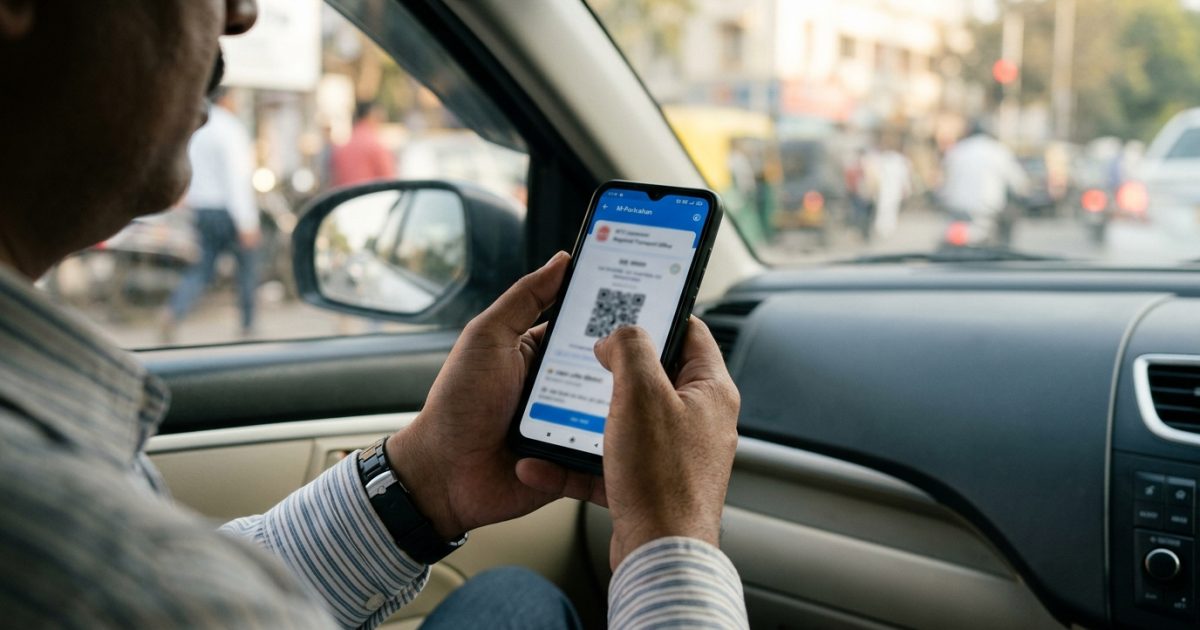
A frequent concern among drivers is whether the app requires an active mobile data connection when stopped by enforcement officers in remote areas. The NextGen mParivahan app automatically caches previously generated Virtual RC and DL documents on your device storage.
As long as you added the documents previously while connected to the internet, you can open the app, enter your mPIN, and produce the dynamic QR code completely offline. The inspecting officer will scan the QR code using their handheld terminal or eChallan device to read the cryptographically stored metadata.
Always make sure to verify that your vehicle registration reflects current fitness and pollution details by using the Check RC and vehicle owner details tool periodically, ensuring your digital records show full compliance when scanned on the road.
Conclusion
Completing your mparivahan virtual rc download and linking your driving licence provides complete peace of mind during traffic checks across India. By keeping verified digital credentials on your smartphone, you stay aligned with Rule 139 of the CMVR and eliminate the risk of document damage or heavy roadside penalties.
Take five minutes today to add your registration certificate and driving licence to the NextGen mParivahan app, and confirm that all your vehicle tax, insurance, and PUC records remain active and up to date.